
Epub Reader
Epub Reader brings a multi-format ebook library and reading controls together in one Android app. Adjust text and display settings, search book contents, save reading progress, and browse or add books from supported sources.
Screenshots
About this app
Epub Reader is an ebook reading app for opening and organizing digital books in formats including EPUB, PDF, MOBI, DJVU, FB2, TXT, RTF, AZW, DOC, DOCX, and ODT. It is useful when you want to read books from different file types in one place and adjust the display to suit your reading preferences.
When adding books to a library
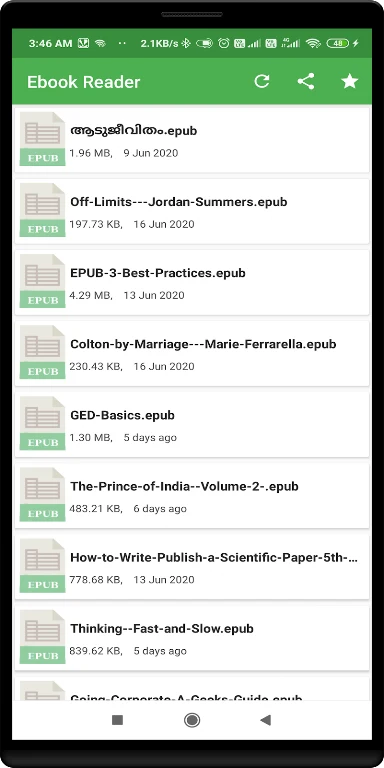
Use the plus button to add EPUB files, or add a folder through the drawer menu to have its files listed in the app. A built-in file manager lets you browse books on the device, while the in-app browser can import EPUB files from websites. The app also includes an OPDS catalog for searching for free books and provides a list of DRM-free ebook resources.
When adjusting a book for reading
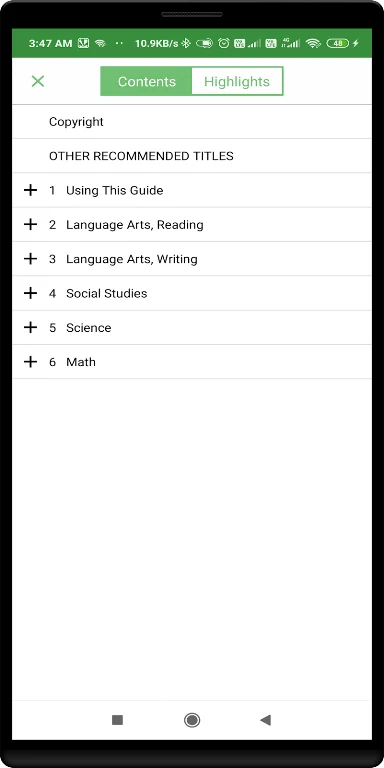
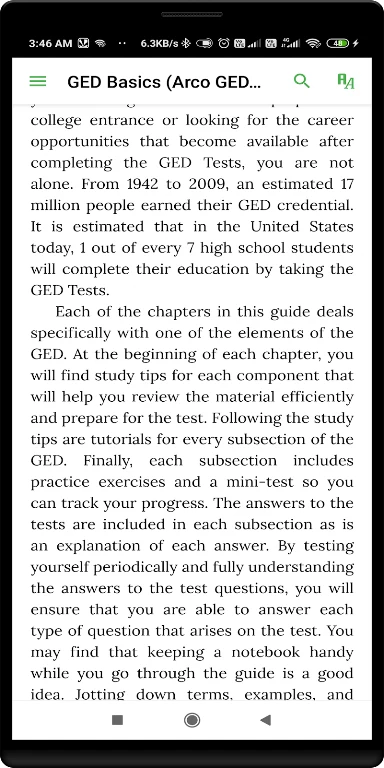
Choose a font and background, switch to a sepia or night theme, and adjust margins, line height, text alignment, and screen brightness. Text can be enlarged or reduced with a pinch gesture. Choose continuous scrolling or page-turning, and use swipes to move between pages or chapters. The table of contents is available from the drawer menu. Tapping an image enlarges it and displays its description; images can also be zoomed.
When returning to a passage or looking up text
Search for words or phrases within a book, open selected words or sentences in a dictionary, and add bookmarks and notes. Reading progress is saved when a book is closed or sent to the background, and the app also remembers the last position and preferred font size for each ebook. Text-to-Speech can read books aloud.
When keeping more than one book open
Multiple books can remain open at once. Switch between them and the book list using the device’s Recently Used Apps button. On Android 7 and later, the app supports reading in a floating window or split-screen view. Close a book with the menu’s Close button or by long-pressing the back button.
Version history
View all05 Jun 2026 · stable