

S7 Edge Lock Screen
S7 Edge Lock Screen replaces the phone’s default lock screen with an S7 Edge-style screen that can be customized with themes and wallpapers. It also offers lock screen sound effects, vibration, and a simple password option.
Screenshots
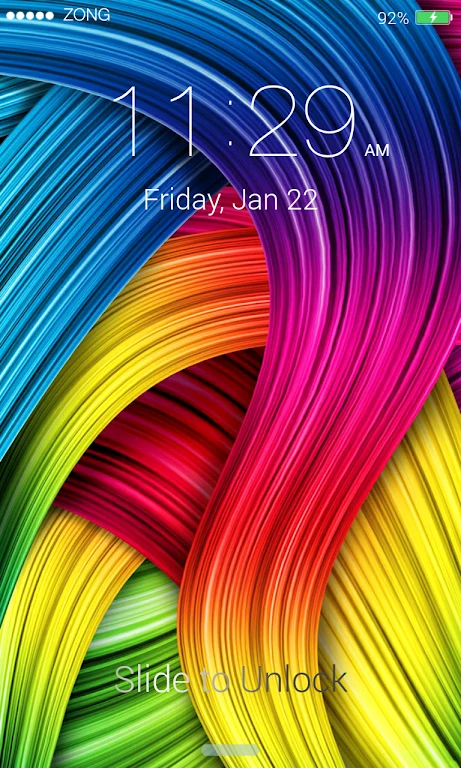
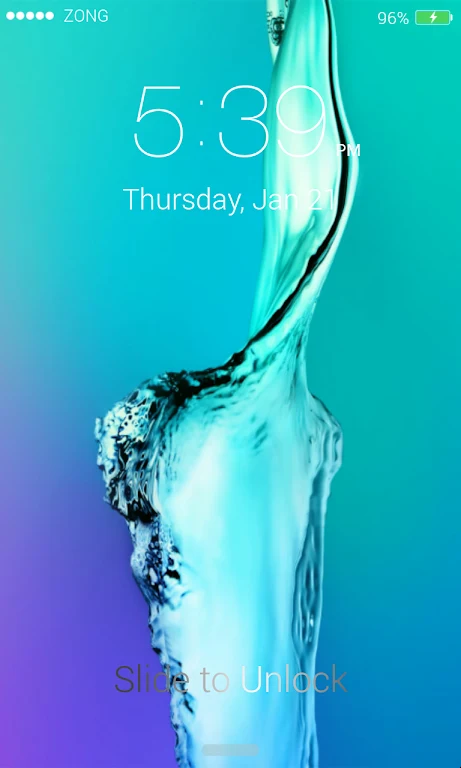
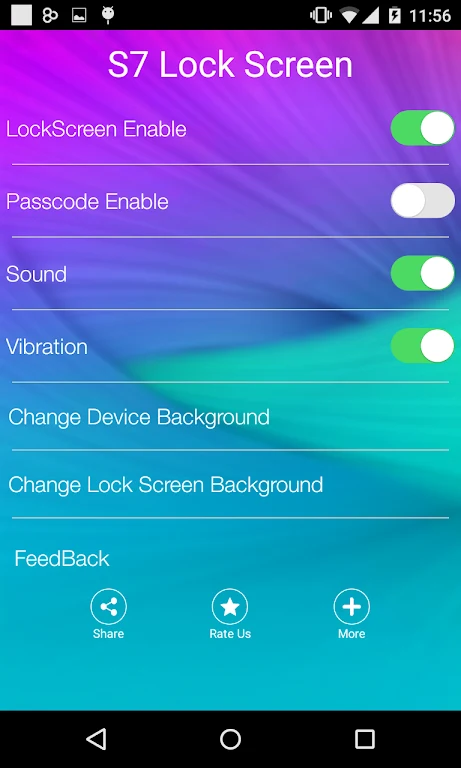
About this app
S7 Edge Lock Screen lets you replace your phone’s default lock screen with an S7 Edge-style alternative and customize its appearance. You can choose from lock screen styles and themes, change the lock screen wallpaper, and enable sound effects or vibration. These options are useful if you want the screen you see when locking your phone to have a different look and feel from the system default. The app also includes a simple password mode, with its controls managed through the app’s settings.
Set up the custom lock screen
To turn on the replacement screen, open the app’s settings and select the “Enable screen” checkbox. The supplied instructions say that users who have a system lock enabled should tap “Disable system lock.” This setup connects the app’s lock screen with the phone’s existing lock behavior, so the system-lock setting is relevant when enabling it.
Choose a look and wallpaper
Use “Set wallpaper” to switch between backgrounds. The app describes a collection of customizable themes and wallpapers, including designs covering Samsung S6, J7, and other phone models. You can change the lock screen wallpaper to personalize the screen; the listed features also mention changing the phone wallpaper.
Sound, vibration, and password options
Sound effects and vibration can be enabled for the lock screen, giving you control over those feedback options alongside its visual settings. For a password mode, select the “Simple password” checkbox in the settings. The available description identifies this as a simple password option but does not explain its format or other security details.
What the app focuses on
The app’s stated purpose is lock screen appearance and basic customization: choosing a style, setting wallpapers, and adjusting sound and vibration. Its instructions center on enabling the screen and selecting these options, rather than describing additional phone-management tools.
Version history
View all10 Jun 2026 · stable
Frequently asked questions
How do I enable S7 Edge Lock Screen?
Open the app’s settings and select the “Enable screen” checkbox. The instructions say to tap “Disable system lock” if you are using the system lock.
How do I change the lock screen background?
Tap “Set wallpaper” in the app to switch to a different background.
Does the app include a password option?
Yes. The instructions say to select the “Simple password” checkbox to use password mode.